Send your animated sticker in iMessage on iPhone
Make an animated GIF sticker from any video and send it in Messages on iPhone, iPad or Mac. How to save it so the animation keeps working.
Messages on iPhone, iPad and Mac plays GIFs, so a GifNoBg sticker can go straight into a chat.
On iPhone or iPad
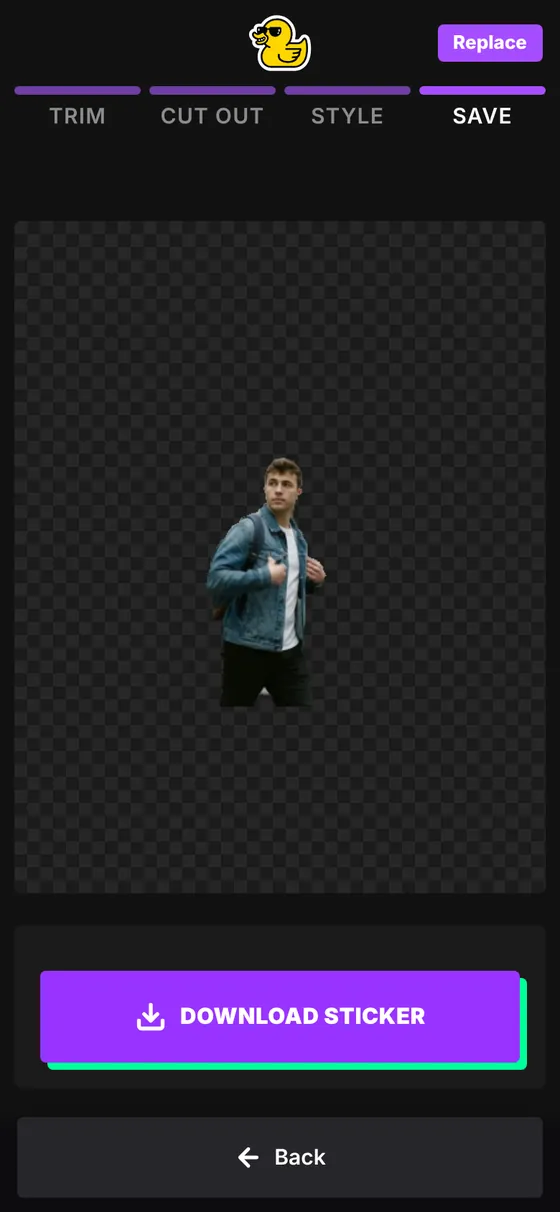
- Make your sticker at gifnobg.com, press Download sticker and choose Just a GIF.
- Save the GIF to the Files app (Safari puts downloads in Downloads). Files keeps the animation and transparency exactly as made.
- Open the GIF in Files, tap Share and choose Messages, then pick the person and send. (If you saved it to Photos, you can also tap + → Photos inside a Messages chat.)
Saving with Share / Save → Save Image puts it in Photos instead. That's quicker to find, but Photos and some apps may not keep the transparency or the animation, so keep the original in Files.
On a Mac
Download the GIF and drag it into a Messages conversation, or paste it with Command‑V.
Tips
- A White outline style keeps the sticker readable on both light and dark chat backgrounds.
- Short loops of 2–4 seconds feel most like a sticker.

Try it with your own videoFree, no sign-up, no watermark — and your video never leaves your device.
Make a sticker