The Advanced editor explained
Switch on Advanced for full control: cut-out methods, edges and softness, hair detail, flicker control, Lock onto subject, styles and every export setting.
Simple mode gives the best automatic result with a few taps. Switch on Advanced (top right of the editor) when you want to fine-tune. The editor then has four steps: Background, Fix a frame, Style and Export, and shows the original and the sticker side by side.
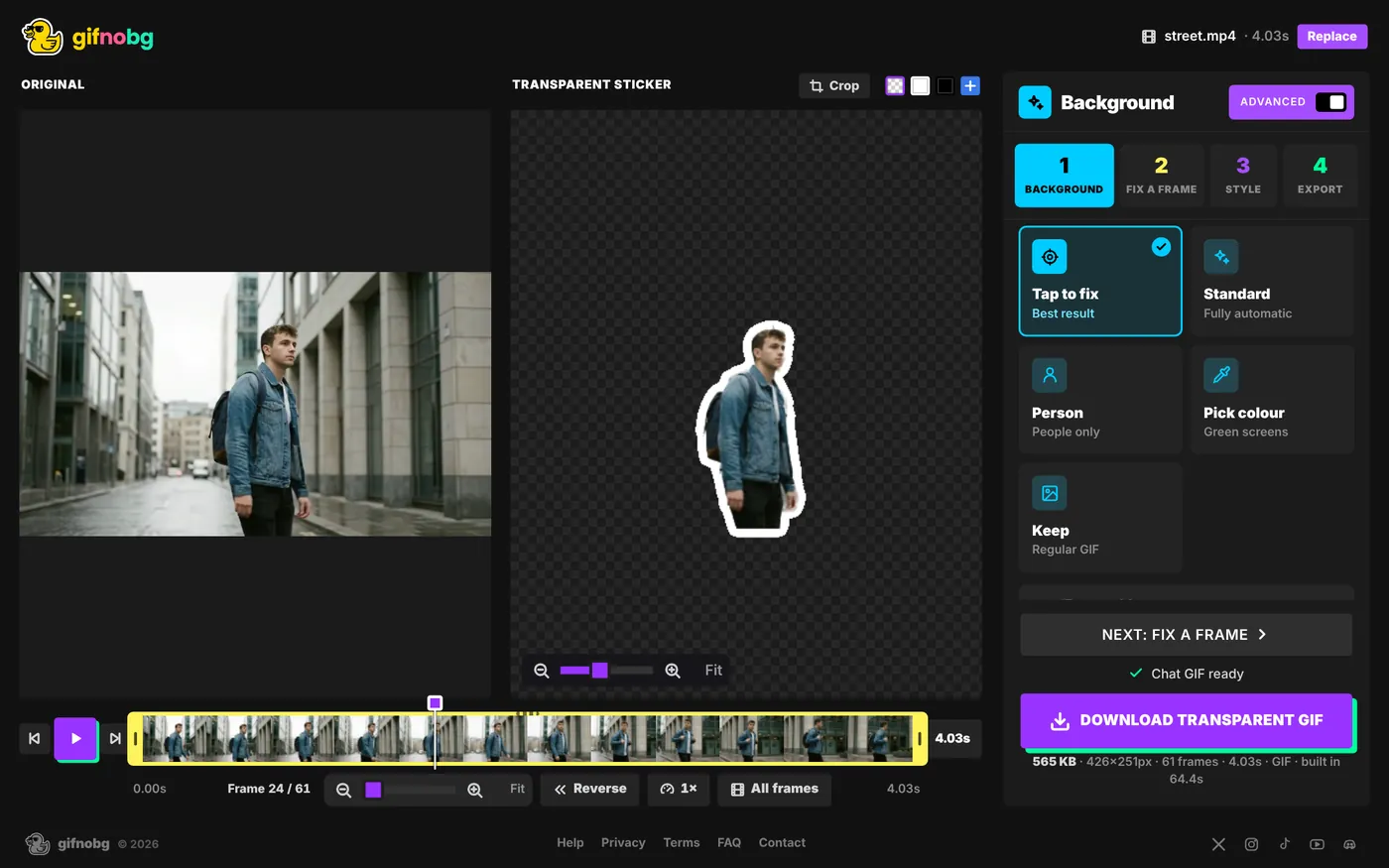
1. Background
Cut-out method
- Tap to fix — best result; tap to add or remove parts (the Simple-mode method).
- Standard — fully automatic.
- Person — tuned for people only.
- Pick colour — for green screens and plain walls. See green screens.
- Keep — a regular GIF with the background kept.
Edges and detail
- Edges: Tighter ↔ Looser — shrink the cut-out to lose a coloured fringe, or grow it to keep more.
- Softness: Sharp ↔ Soft — how soft the edge is.
- Hair & fine detail — extra care around hair and fur.
- Steady between frames — stops the outline flickering from frame to frame.
Automatic fixes
When GifNoBg spots something it can help with, a note appears:
- Still camera — the camera didn't move, so bits of the room stuck to the subject are removed. Turn off if it removes too much.
- Plain wall found — backdrop assist can clean gaps and colour fringe.
Lock onto subject
Keeps only one subject and removes other separate things — people walking past, pets, objects. Tap the subject you want to keep in the preview.
2. Fix a frame
Brush over a single frame by hand. See Fix a single frame.
3. Style
All 27 styles, plus Border, Shadow, Padding and Crop to the subject. See outlines and shadows.
4. Export
Choose where it's going — GIPHY sticker, WhatsApp, Discord sticker, Slack emoji, Discord emoji, Chat GIF or High quality — or open Custom for format, frame rate, width, speed, boomerang, repeat, colours, colour blending, edge settings and a still PNG. See formats and file size.
Performance
- Use the GPU for the AI (experimental) — can be much faster on computers with a capable graphics card.
- Smaller download — a lighter tap model for slow connections (edges may be a little softer).