Fix the cut-out: tap to add or remove
Something missing from your sticker, or a bit of background left over? Choose Add or Remove and tap it once — the fix follows that part through the whole video.
The automatic cut-out gets most clips right straight away. When it doesn't — a hand is missing, or a bit of a chair is stuck to the subject — you don't need to paint anything. One tap is enough.
How to fix it
- In the Tap to add or remove card on the right, choose + Add (to bring something back) or - Remove (to take something away).
- Tap the part in the sticker preview. Tap the middle of it — you don't need to trace the edges.
- GifNoBg cuts out exactly that part and follows it through the clip, so the fix applies to every frame where it appears.
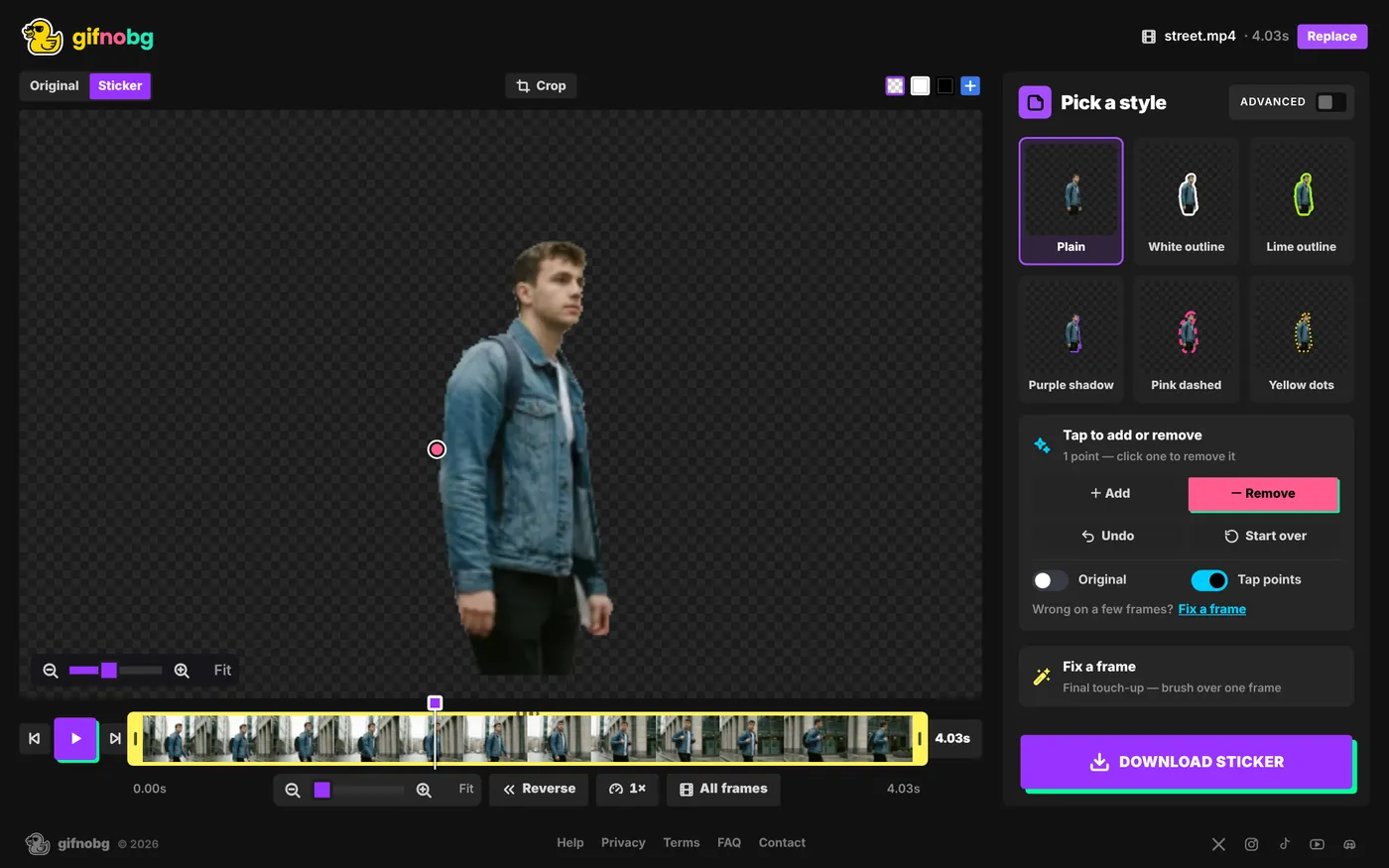
Taps only change what you tapped
Each tap adds or removes only its own part. Everything else in the cut-out stays exactly as it was, so a tap can never break a frame that was already right. Taps are applied in order, which means you can remove a whole object and then add back one piece of it.
Common fixes
- Two people, you want one: choose Remove and tap the person you don't want.
- A hand, a ball or a leash went missing: choose Add and tap it.
- Don't want a bag, hat or prop: choose Remove and tap it.
- A piece of furniture is stuck to the subject: choose Remove and tap the furniture.
- Something only appears for a moment: go to a frame where it's visible (use the timeline or the ◀ ▶ buttons) and tap it there.
The other buttons
- Undo — takes back your last tap.
- Start over — removes all taps and returns to the automatic cut-out.
- Original — shows the original video underneath, so you can see what was cut away.
- Tap points — shows or hides the little dots that mark where you tapped.
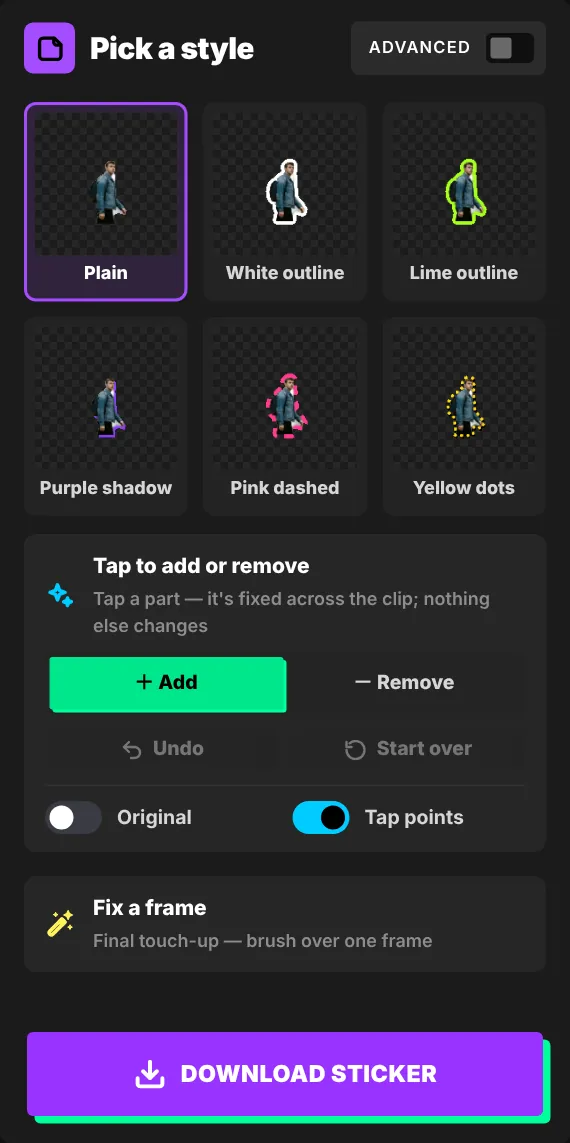
On a phone, the same buttons appear in step 2, Cut out. Press and hold Hold to see original to compare.
Still not perfect on one frame?
For a single stubborn frame, use Fix a frame and brush over it by hand. It only changes that one frame.