Add an outline, glow or shadow to your sticker
Give your transparent GIF the classic sticker look: a white or coloured outline, dots, dashes, a glow or a drop shadow — all customisable.
Styles turn a plain cut-out into a sticker. They're added around the subject on every frame, and they also hide tiny edge pixels — which makes them especially good for GIFs.
Pick a style
The styles are on the right of the editor (step 3, Style, on a phone). Tap one to try it on your sticker; tap Plain to go back to just the cut-out.
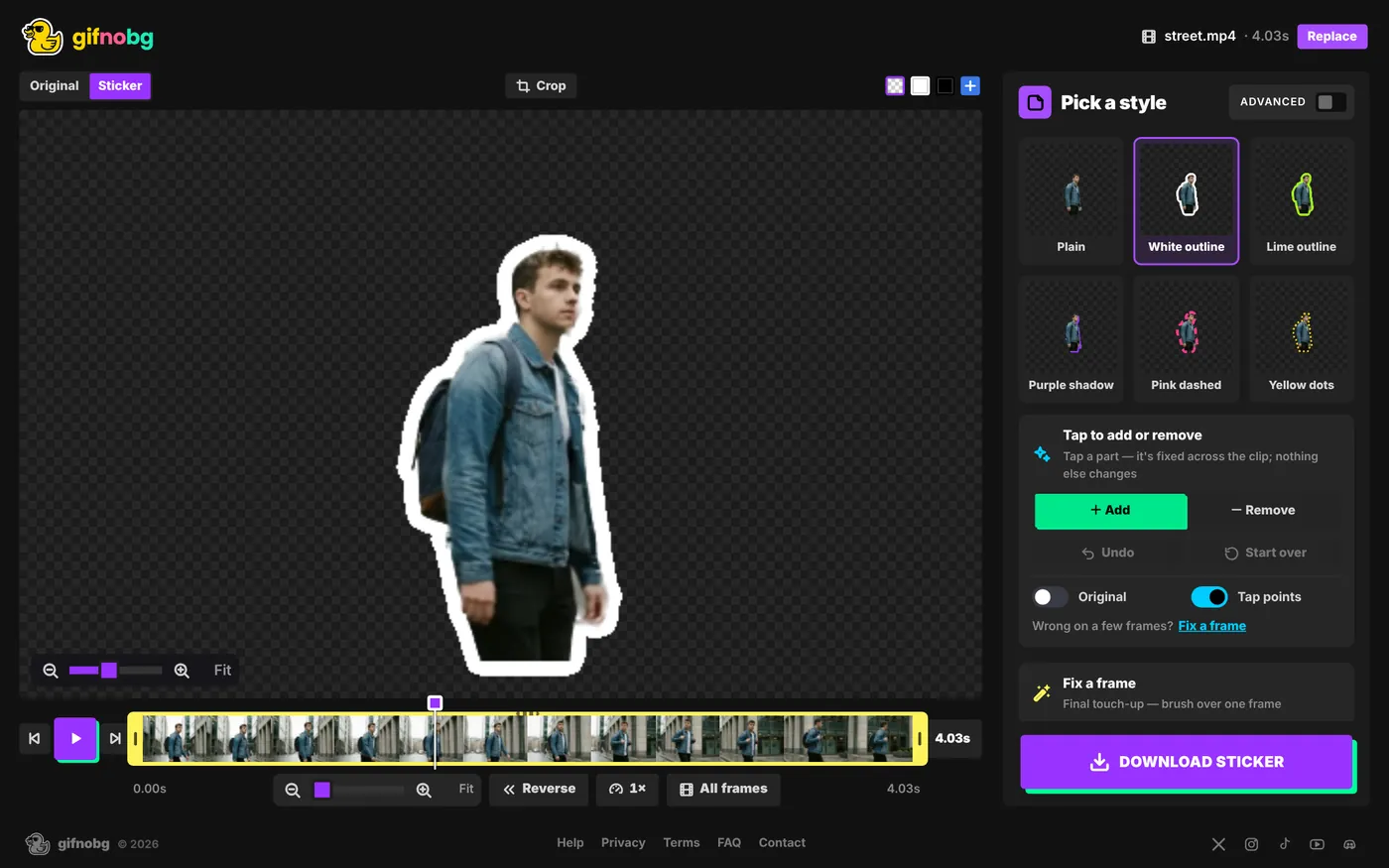
The quick styles are Plain, White outline, Lime outline, Purple shadow, Pink dashed and Yellow dots. In the Advanced editor, More styles opens 24 more, including glows, comic, stamp, retro pop and long shadows.
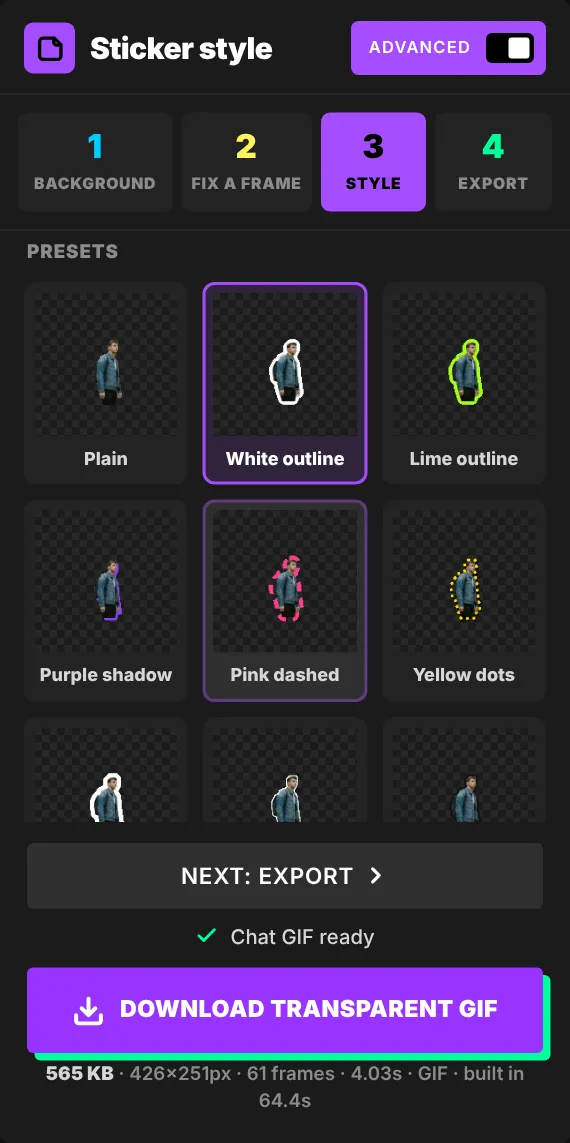
Customise it (Advanced)
Border
- Thickness — 1 to 24 pixels.
- Line — Solid, Dashed or Dotted.
- Colour — any colour.
Shadow
- Distance, Spread and Softness.
- Opacity — how strong it is.
- Direction — drag the dial to point the shadow anywhere.
- Colour.
Padding and Trim
Padding adds space around the sticker so outlines and shadows aren't cut off. Crop to the subject trims away empty transparent space, so the file is smaller and the sticker sits snugly.
Check it on different backgrounds
A dark shadow is hard to see on the dark checkerboard. Use the small swatches above the sticker to preview on white, black or any colour.
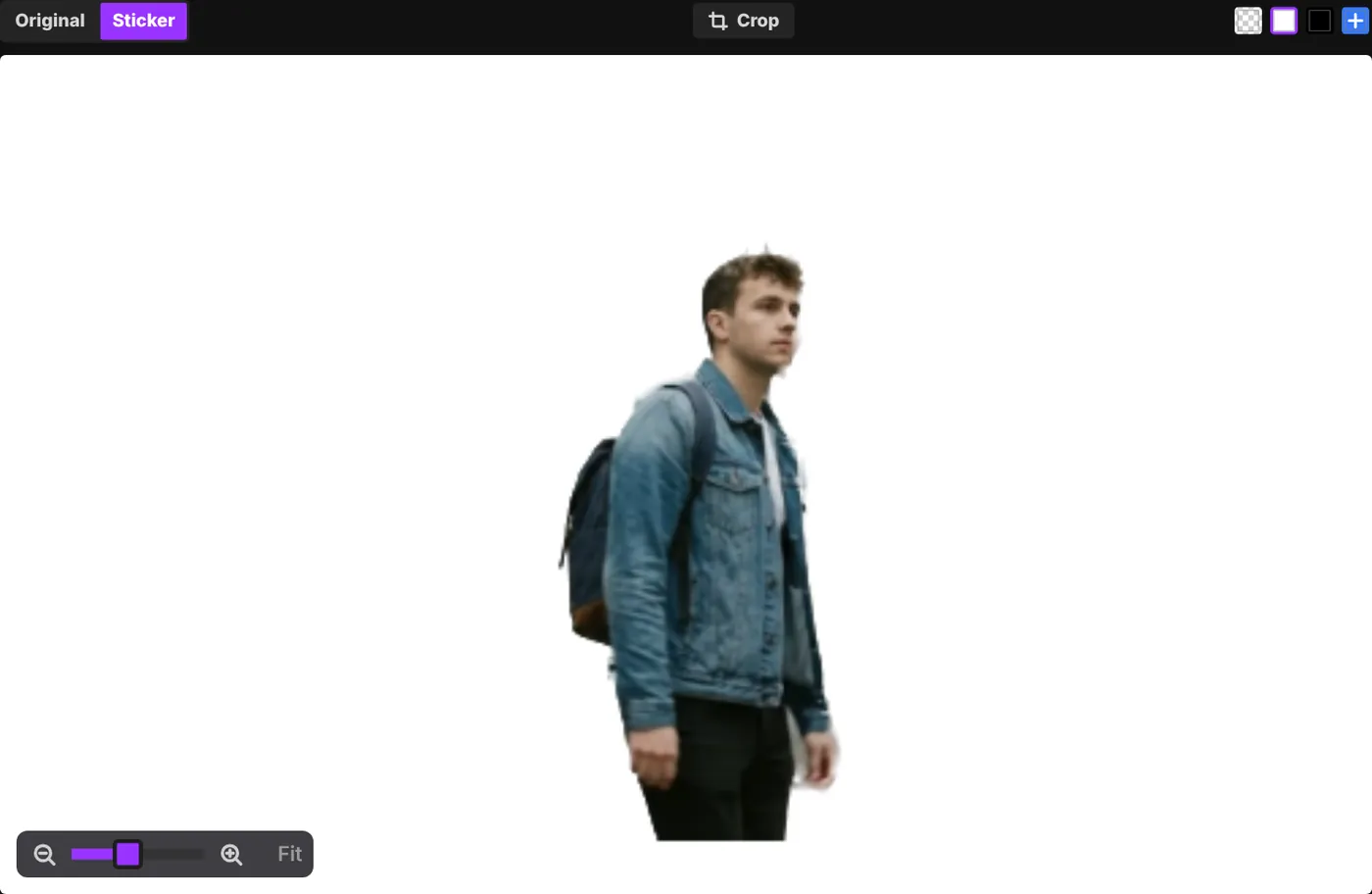
GIF edges and shadows are solid (GIFs can't be half see-through). For soft shadows, download a WebP or APNG — see which format to choose.