GIF, WebP or APNG: which transparent format to choose
All three formats can be transparent and animated. Here's how they differ in quality, file size and where they work — plus how to make your sticker smaller.
| GIF | WebP | APNG | |
|---|---|---|---|
| Transparency | On / off only (hard edges) | Smooth (soft edges) | Smooth (soft edges) |
| Colours | Up to 256 | Millions | Millions |
| File size | Medium–large | Smallest | Large |
| Works in | Everywhere | WhatsApp, browsers, most apps | Discord, browsers |
| Best for | GIPHY, Slack, chats, email, anywhere | WhatsApp stickers, websites | Discord stickers |
If you're not sure, choose GIF — it works everywhere. When you press Download sticker, GifNoBg asks where you'll use it and picks the format for you.
Why do GIF edges look jagged?
A GIF pixel is either fully see-through or fully solid — there's no in-between. Soft hair and shadows have to be rounded one way or the other. Three ways to make it look better:
- Add an outline style — it hides the edge completely.
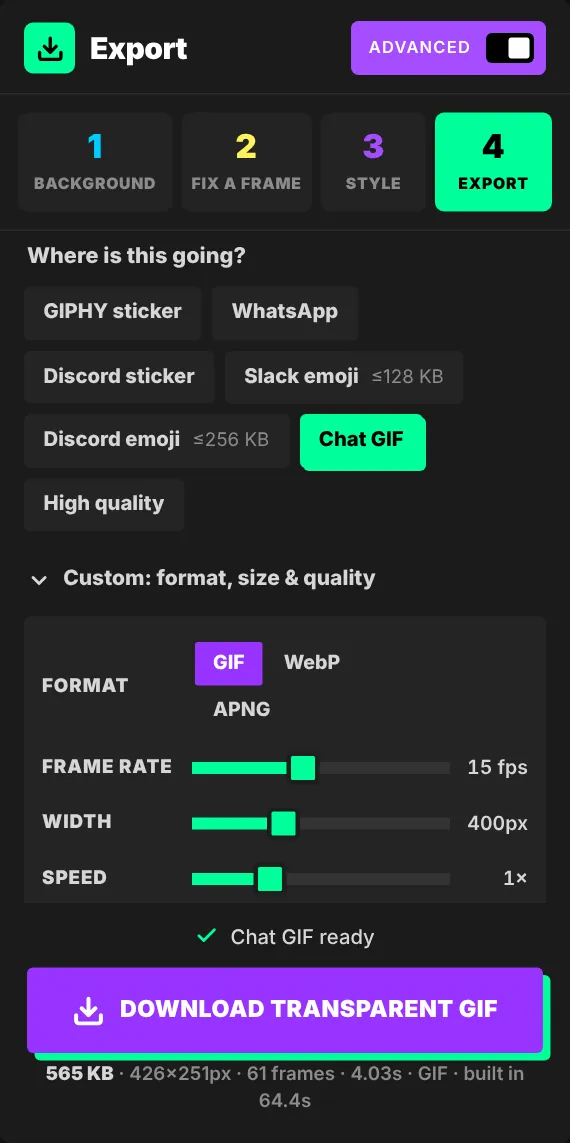
- In Advanced → Export → Custom, set Best on to Dark or Light if you know where the GIF will be shown.
- Set Soft edges to Smooth to mix the edge with a fine pattern instead of a hard cut.
Making the file smaller
- Trim it shorter — the biggest saving.
- Skip frames — choose Every 2nd frame under the timeline.
- Smaller width and lower frame rate in Advanced → Export → Custom.
- Fewer colours (GIF only) — 64 or 128 colours is often plenty.
- Colour blending: None gives the smallest GIF; Smooth looks best.
- Crop to the subject in Style removes empty space.
A single still image
Need just one frame? Advanced → Export → Custom → PNG of this frame saves the current frame as a transparent PNG.

Try it with your own videoFree, no sign-up, no watermark — and your video never leaves your device.
Make a sticker