Make a transparent GIF sticker on your phone
GifNoBg works in your phone's browser, no app needed: Trim, Cut out, Style, Save. Plus how to keep the transparency when you save on iPhone.
There's nothing to install: open gifnobg.com in Safari, Chrome or any modern mobile browser and choose a video from your camera roll. On a phone, GifNoBg walks you through four steps.
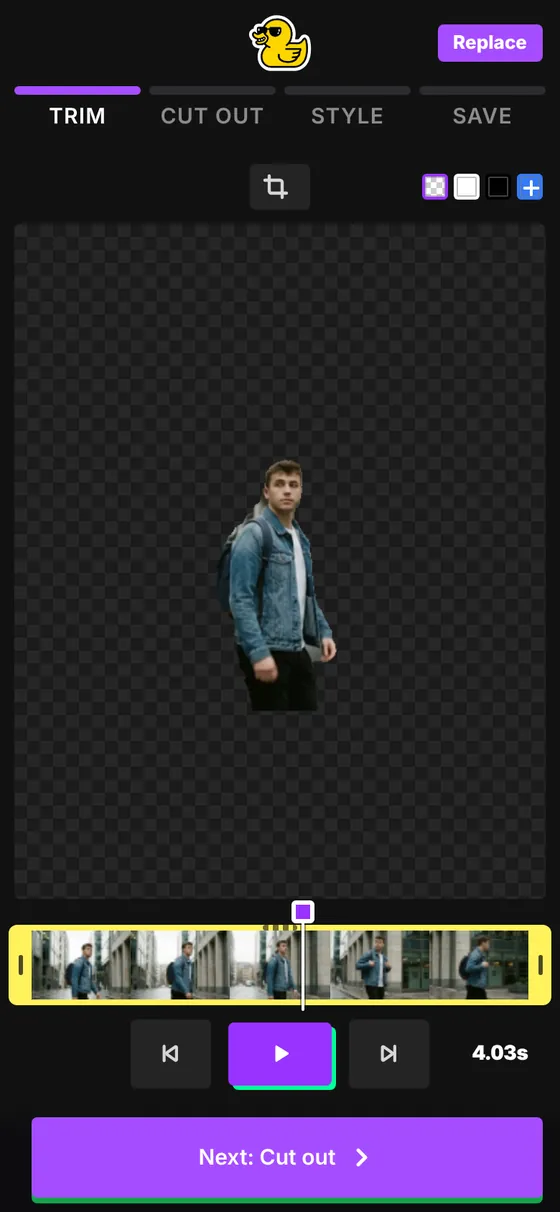
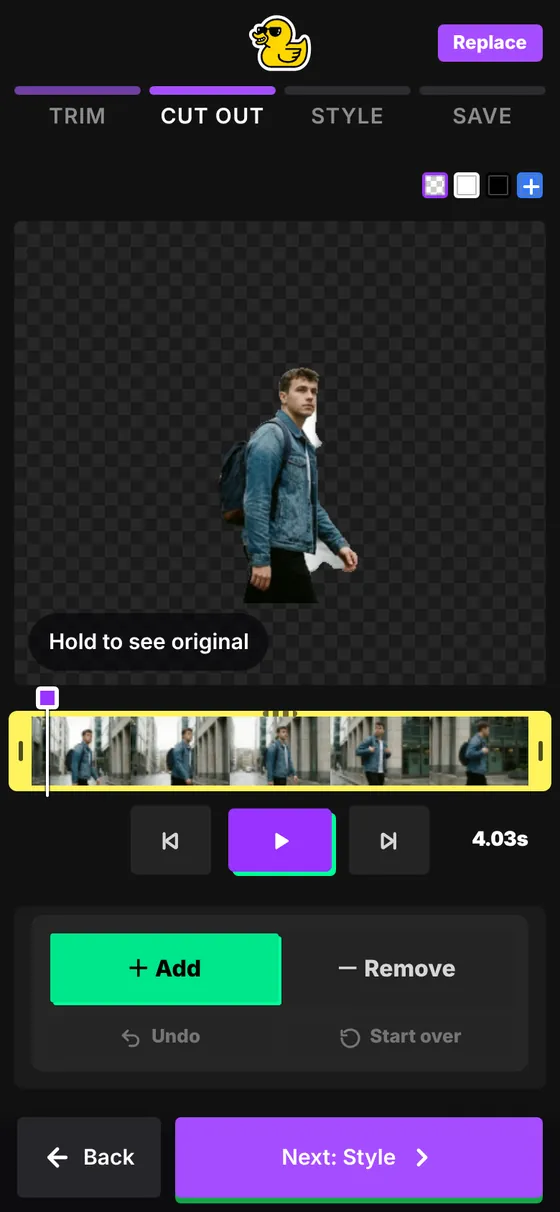
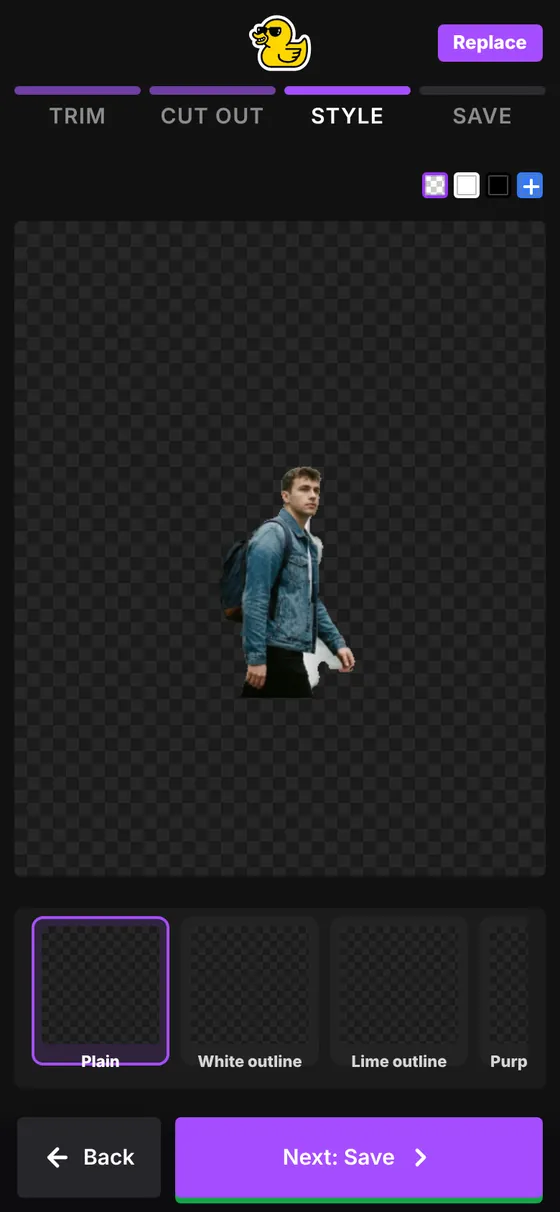
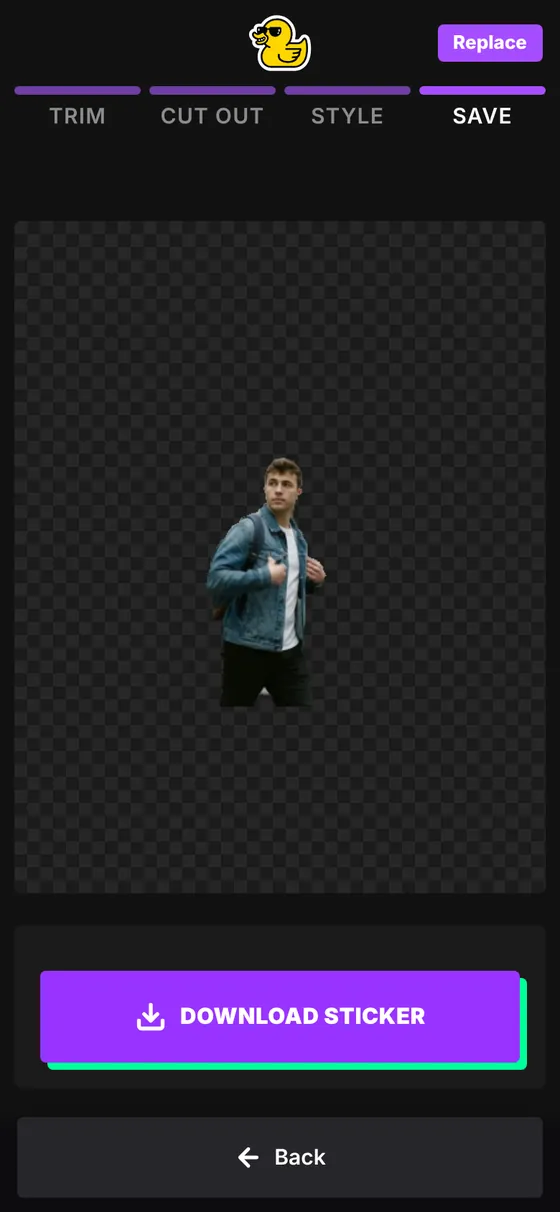
- Trim — drag the yellow edges of the timeline to pick the moment. You can also crop, reverse or change the speed here.
- Cut out — check the cut-out. Something missing? Tap Add, then tap it. Something extra? Tap Remove, then tap it. Press and hold Hold to see original to compare. Pinch to zoom.
- Style — swipe through the styles and tap one to try it.
- Save — download your sticker and choose where it's going.
Use Back and Next at the bottom to move between steps.
Saving on iPhone without losing transparency
The Photos app on iPhone doesn't keep GIF transparency or animation reliably. To keep the original sticker:
- Tap Download GIF.
- Open it in the Files app — usually under Downloads.
- Keep it there to reuse, upload or share later.
You can also try Share / Save → Save Image, but Photos and some apps may flatten the transparency or show only the first frame.
Saving on Android
Tap Download GIF — the file goes to your Downloads folder, and you can share it from there or from the Files app.
Phone tips
- Trim first. Phones are slower than computers; shorter clips cut out much faster.
- Keep the browser tab open while the AI works — switching apps can pause it.
- The first run downloads the AI models. On mobile data that's worth doing on Wi-Fi.
- The full Advanced editor is easiest on a computer.

Try it with your own videoFree, no sign-up, no watermark — and your video never leaves your device.
Make a sticker