How automatic background removal works
GifNoBg finds the person, pet or object in your video and removes the background from every frame automatically, with AI that runs on your own device.
You don't need a green screen to remove the background from a video. When you open a clip, GifNoBg uses several AI models together to work out what the subject is and cut it out of each frame — automatically, with no clicking or painting.

What the AI does, step by step
- Finds the subject. A person detector and a general "what stands out" model look at the frame and decide what the main subject is — a person, a pet, a toy, a product.
- Cuts it out precisely. A segmentation model (MobileSAM) draws an exact outline around that subject, including hair and fingers.
- Follows it through the clip. Each frame uses its neighbours as a guide, so the cut-out stays steady instead of flickering from frame to frame.
- Cleans up. Holes inside the subject are filled, stray specks are removed, and if you filmed in front of a plain coloured wall, that colour is used as an extra clue to clean the edges. See green screens and plain walls.
It runs on your device — nothing is uploaded
Most online background removers upload your video to a server. GifNoBg doesn't: the AI models are downloaded to your browser once, and all the work happens on your own computer or phone. That's why it's free with no limits, and why your video stays private. More in Is my video uploaded?
The first time you use GifNoBg, the AI models need to download, so the first cut-out takes a little longer. After that your browser keeps them and it starts much faster.
Watching the progress
GifNoBg shows a quick preview first and then works through the whole clip. On the timeline, frames that are still being processed have a moving purple striped cover; when the stripes are gone, every frame is done. If you jump to a frame that isn't ready yet, you'll see a spinner saying Working on this frame.
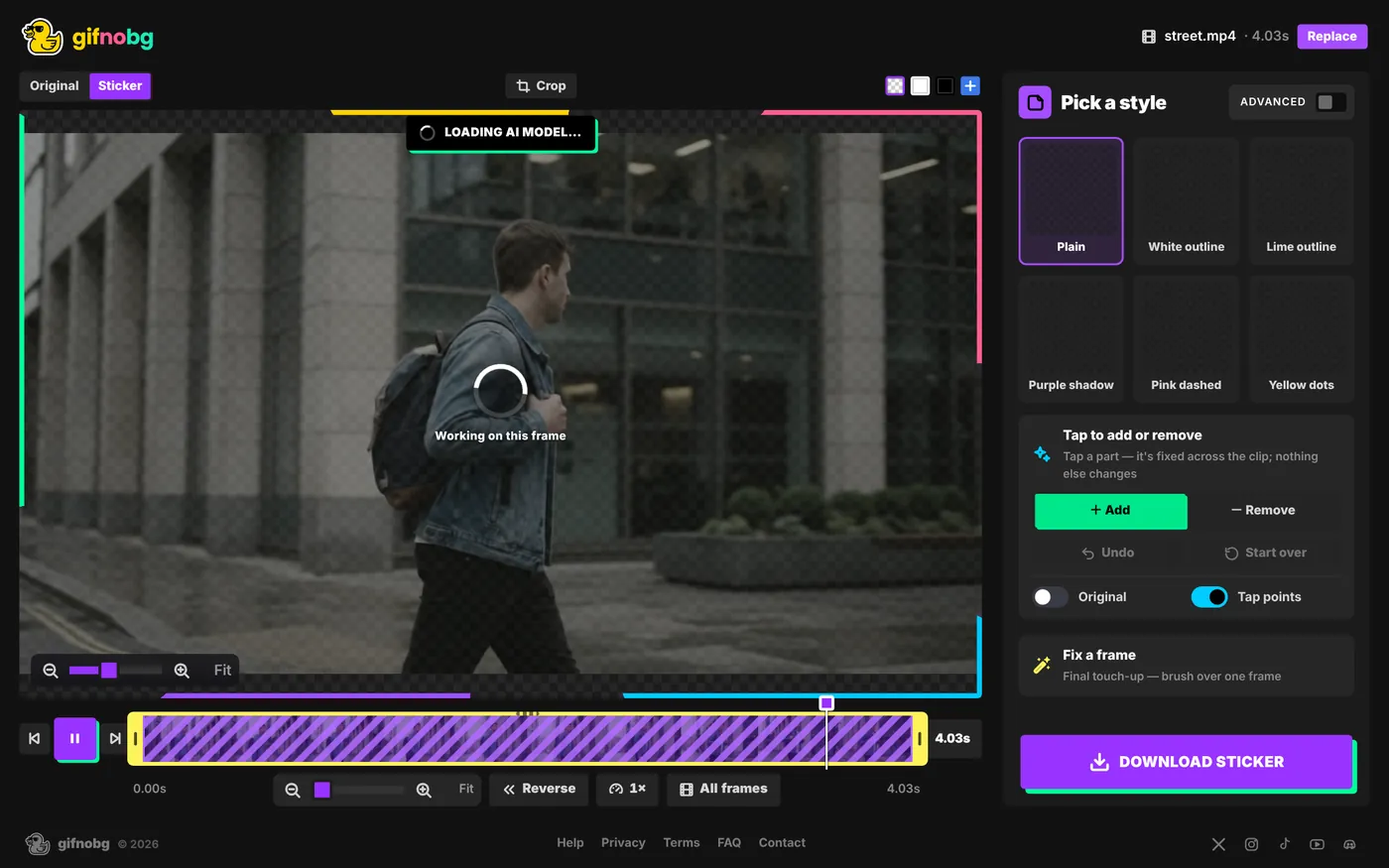
People, pets and objects
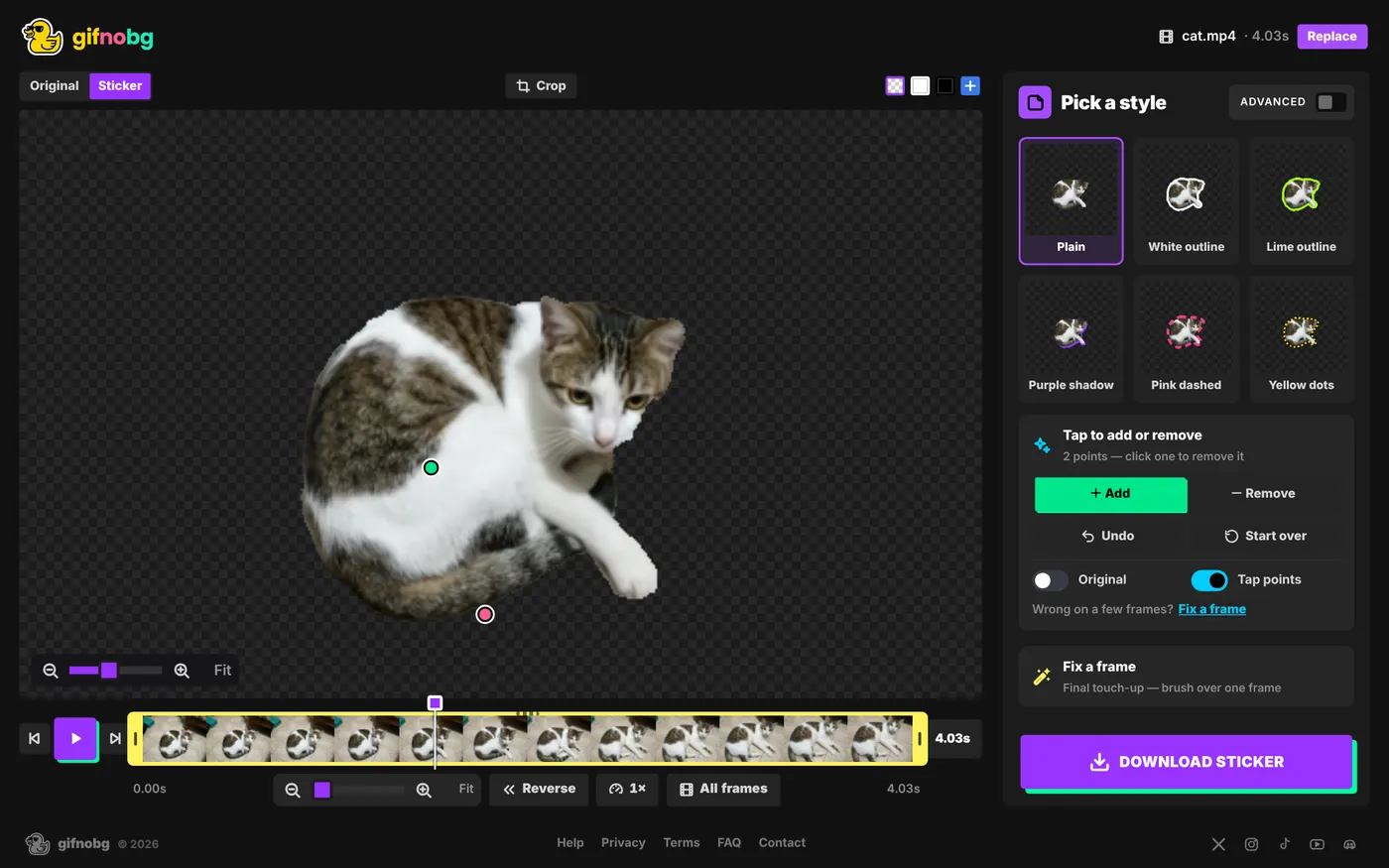
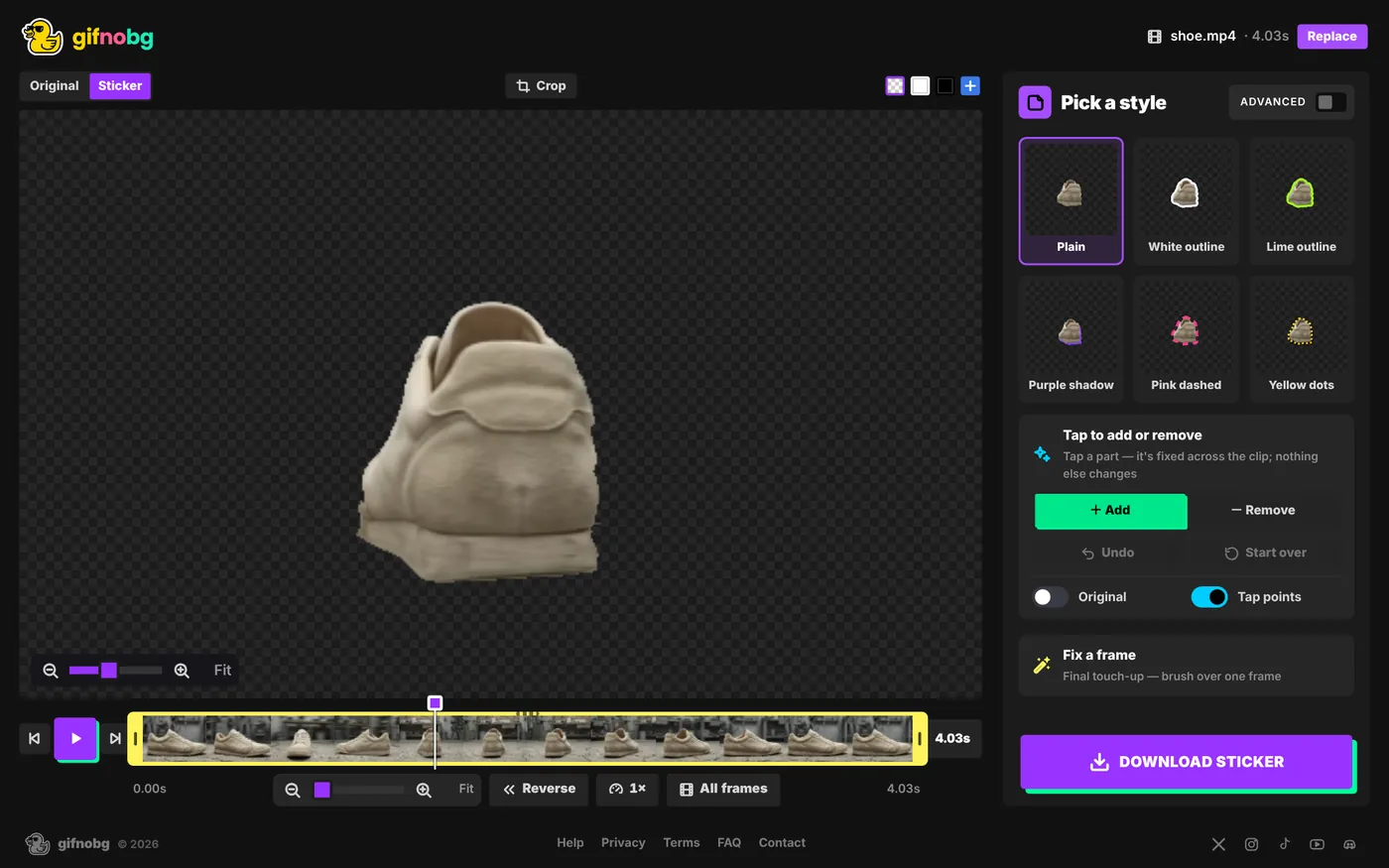
It isn't only for people. The same automatic cut-out works for animals and things:
What works best
| Works great | Harder |
|---|---|
| One clear subject — a person, a pet, an object | Crowds, or several people overlapping |
| Subject stands out from the background | Subject the same colour as the wall behind it |
| Steady or slow camera | Very fast motion with heavy blur |
| Short clips (a few seconds) | Long clips — trim to the part you need first |
If the AI keeps something you don't want, or misses a part, you can fix it with a single tap: Tap to add or remove. If there are two people and you only want one, tap the other with Remove.
Other ways to cut out (Advanced)
Switch on Advanced (top right) to choose a different method under Background:
- Tap to fix — the default and best result.
- Standard — fully automatic, good for pets, objects and most things.
- Person — tuned for people only.
- Pick colour — removes one colour, for green screens.
- Keep — makes a normal GIF without removing anything.
See The Advanced editor explained for the edge, softness and flicker settings.