Fix a single frame with the brush
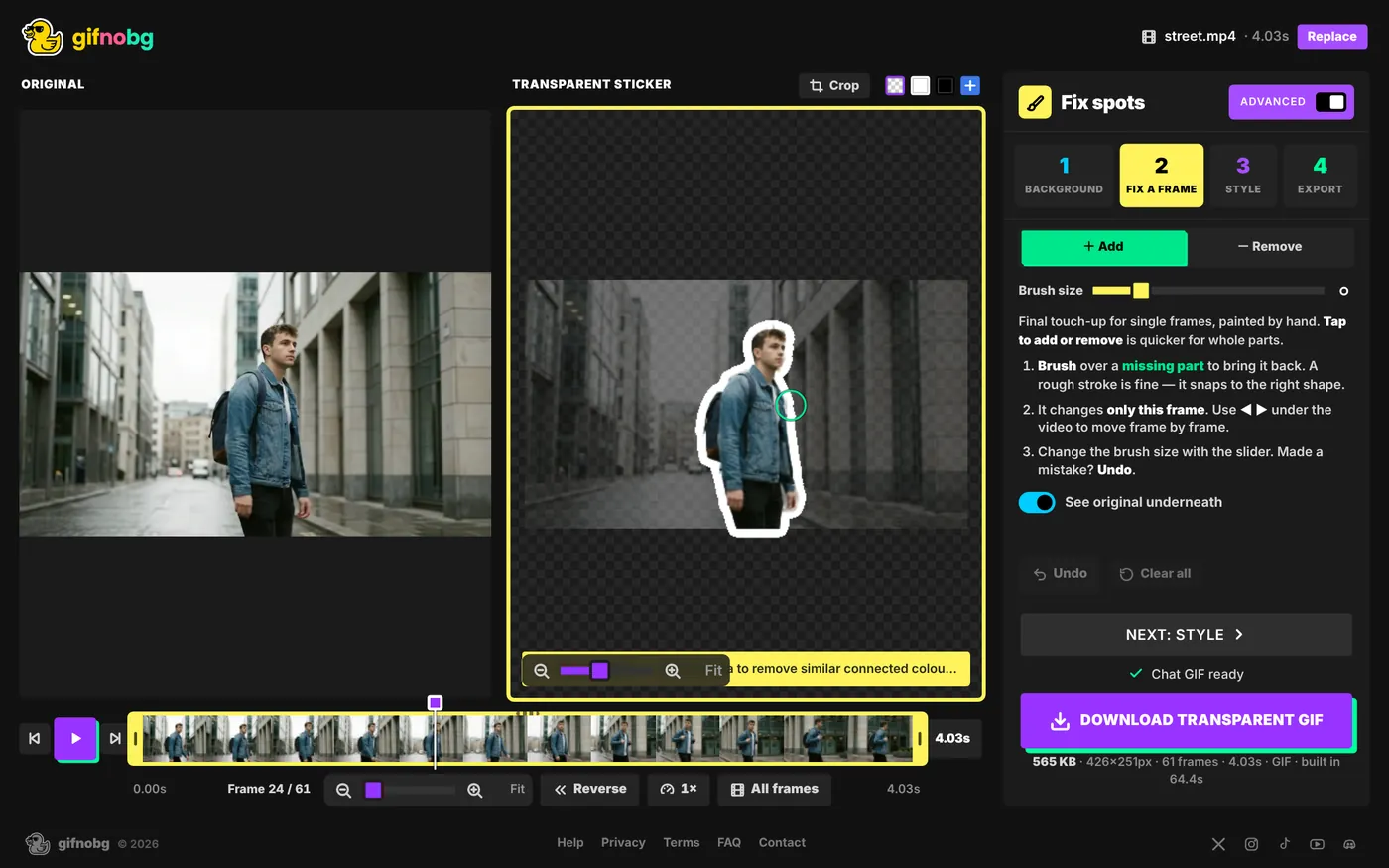
Use Fix a frame to paint a missing or extra part back by hand on one frame. A rough stroke is enough — it snaps to the right shape.
Tap to add or remove fixes whole parts across the clip. Fix a frame is the final touch-up for the odd frame that still isn't right — a blurry hand during a fast wave, say.
How to use it
- Move to the frame you want to fix with the timeline or the ◀ ▶ buttons (or the ← → keys).
- Press Fix a frame (under Tap to add or remove, or step 2 in the Advanced editor).
- Choose + Add to bring a missing part back, or - Remove to erase something.
- Brush over the area. A rough stroke is fine — it snaps to the right shape.
- Press Done when you're finished.
Good to know
- It changes only this frame. To fix the same part on every frame, use Tap to add or remove instead.
- Change the brush size with the Brush size slider.
- See original underneath shows the video faintly behind the sticker so you can see what you're painting.
- Undo takes back the last stroke; Clear all removes every fix on this frame.
- Zoom in with the zoom slider under the preview (or Ctrl + scroll) for small details.

Try it with your own videoFree, no sign-up, no watermark — and your video never leaves your device.
Make a sticker